


tinyCam Monitor
3.73.69K Reviews
App Specs
- Version
- Varies with Device
- Updated On
- License
- Free
- Downloads
- 10,000,000+
- Developer
- Tiny Solutions LLC
- Categories
- House & Home
- Platform
- Android, iOS
Screenshots
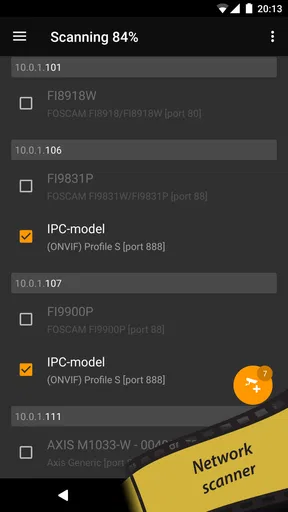
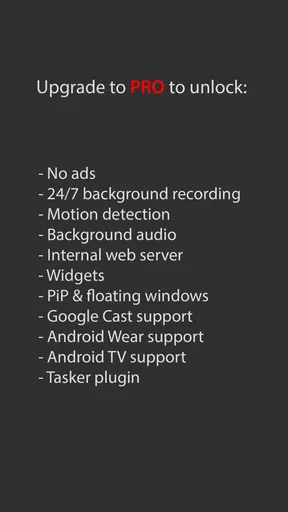
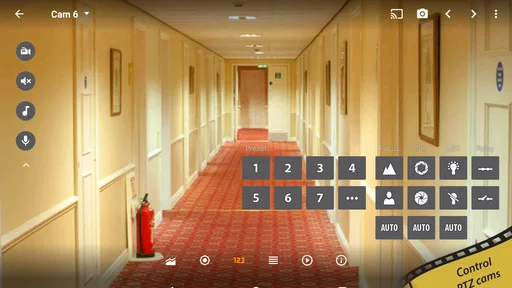

 Analysis by AppCompare
I find tinyCam Monitor most interesting when a home already has cameras from different makers and I want one place to check them. It is a free home-monitoring app from Tiny Solutions LLC, and its long history makes it feel more like a practical viewer for an existing setup than a new smart-home system that tries to replace everything. The key question is whether your cameras and connection details work well with it; the app’s broad compatibility is useful, but it does not make setup identical for every device.
A viewer for mixed camera setups
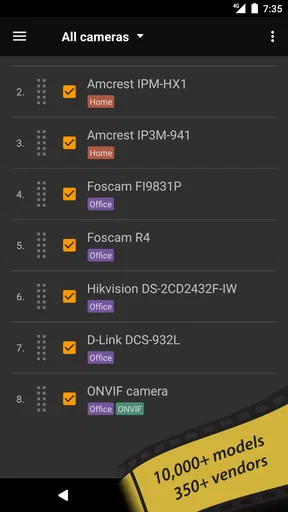
The app is intended for viewing IP cameras, including ONVIF, Wyze, P2P, CamHi, and Neos devices. That mix matters if you have added cameras over time instead of buying one matched set. Rather than opening a separate manufacturer app for each feed, you can try bringing supported cameras into one viewer. In practice, compatibility depends on the particular camera and how it is configured, so I would check the model’s connection options before planning a whole system around it.
That makes this a different proposition from a typical camera-maker app. A brand’s own app is usually the simpler first choice for someone with one camera who wants the manufacturer’s setup flow and account-based features. A general viewer such as tinyCam Monitor is more appealing when you value a consolidated view or have cameras from several sources. I would treat it as a viewing and monitoring tool, not assume it replaces every feature in each camera’s original app.
What daily monitoring looks like
A useful everyday routine is checking a camera before heading home: I can look at the entryway or another familiar area, then switch to a second view if something needs a closer look. For a household with multiple cameras, a combined screen can save the small but repeated hassle of backing out of one app and opening another. That convenience is most valuable when the feeds are already configured and the cameras are reachable; it cannot compensate for a weak network or a camera that has gone offline.
Before relying on any phone viewer, I would test the exact moments that matter: open a feed on home Wi-Fi, check it again over mobile data, and confirm that the image and any available audio behave as expected. Then repeat the check when the phone is locked or the app has been left in the background, if alerts are part of your intended routine. These simple tests help separate a camera or network issue from an app issue, and they are more useful than assuming every supported camera will behave the same way.
Compatibility takes patience
ONVIF support can be especially helpful for cameras that expose standard network-camera controls, while P2P options may suit devices designed to connect through their own peer-to-peer setup. Those approaches are not interchangeable, and the right one depends on what a particular camera supports. If automatic discovery does not find a device, I would check the camera’s own settings and use the connection method it provides rather than repeatedly adding the same camera in different ways.
There is a trade-off to broad compatibility: a unified app can simplify viewing once everything is connected, but initial setup may ask more of you than a single-brand app does. Keep track of which connection method works for each camera, and test each feed separately before building a crowded multi-camera view. That makes later troubleshooting easier, especially if one device stops appearing while the others continue to work.
Worth Reading Before You Choose

Baby Panda World Brings Quick Play to Modern Phones, but Its Game Library Feels Busy

ESPN’s Live Game View Makes Following Close Games Easier

QuizzLand Review: A Good Fit for Short Trivia Breaks, Not Every Player

Basketball Stars: Multiplayer Is Fast, but Can It Recover When Matches Go Wrong?

WEBTOON Turns Phone Updates Into a Better Reading Routine

Link to Windows Runs on Shared Habits, Not Social Feeds
Setting Up Like a Breeze
First things first, let's talk setup. If you're anything like me, you probably dread the idea of spending hours fiddling with confusing settings. Well, good news! tinyCam Monitor makes the whole process super smooth. I downloaded it from the app store, and within minutes, I was up and running. The app guides you through connecting your cameras with a straightforward, step-by-step process. No tech degree required here, thank goodness!
Intuitive Interface
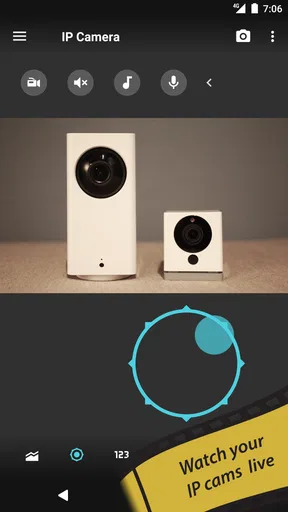
Once you’re all set up, the app greets you with a clean and intuitive interface. I love how all the essential features are just a tap away. You can easily switch between different camera views, zoom in for a closer look, or even take snapshots. It's like having your own personal surveillance command center.
Features Galore
Now, onto the features. What doesn’t this app do? It supports a wide array of cameras, so chances are, whatever you've got, it's compatible. Real-time notifications? Check. Motion detection? Yep. You can even set it up to sound an alarm if something fishy’s going on. There's also cloud storage support, which is a lifesaver for those of us who tend to forget to download footage regularly.
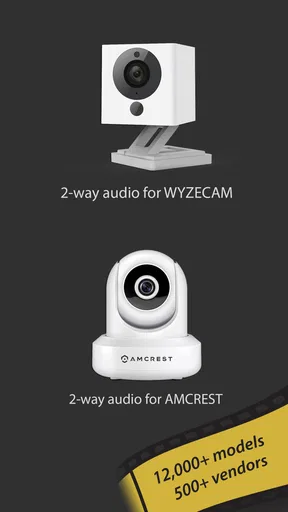
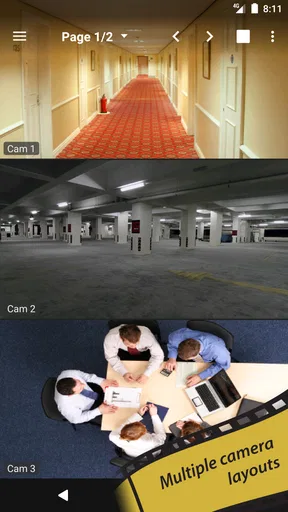
Another cool feature is the capability to view multiple cameras simultaneously. So, if you’re juggling several feeds, you won’t miss a beat. Plus, the app supports audio, so you can hear what's happening in real-time. Talk about peace of mind!
Performance and Reliability
Performance-wise, tinyCam Monitor is rock solid. Video streams are smooth, and the app runs without a hitch. I tested it on both Wi-Fi and mobile data, and each time it delivered consistent results. Even the night vision feature works like a charm, providing clear images even in low-light conditions.
Privacy and Security
Let’s talk privacy, because, let's face it, that's a big deal nowadays. The app takes security seriously, offering encryption to protect your data. It feels good to know that your feeds are secure and not just floating around in cyberspace for anyone to peek at.
Is It Worth It?
In my opinion, absolutely. Whether you're looking to keep tabs on your home while you're out or need a comprehensive security setup, this app has you covered. It's packed with features yet remains user-friendly, which is a rare find.
tinyCam Monitor has been around since February 6, 2010, and its continued presence gives the app the feel of a mature utility rather than a new camera platform. It has a 3.8 average from around 76,000 ratings, with over 10 million installs, so it is clearly used by a large audience, though those numbers do not tell me whether a specific camera will connect smoothly. It is rated for everyone. I would judge it on the practical fit of my cameras and the reliability of my own network, not popularity alone.
Where it fits—and where it doesn’t
I would recommend trying it if you already own compatible network cameras, particularly if they come from more than one brand, and your main need is to view them in one place. It can also suit someone who is comfortable checking camera settings and wants a flexible monitor without paying for the app itself. The free price makes it easy to evaluate with one camera before investing time in a larger setup.
On the other hand, if you want a guided security package with a matching camera, cloud service, and one support channel, the manufacturer’s app or a complete camera system may be a better fit. Those options can make it clearer where to go when a feature fails. I would also skip a general viewer if you need guaranteed compatibility without checking your model, or if you expect it to replace a camera’s full suite of manufacturer-specific controls.
Small habits that make monitoring more useful
For a multi-camera screen, I would put the views I check most often together and keep less important angles separate. That reduces the chance of spending time scanning a crowded layout when I only want to check a door or shared area. I would also take a snapshot during setup and compare it with the live view later; it gives me a simple reference for whether the camera has shifted or its picture has changed.
Notifications and alarms need a little restraint. A camera pointed at a busy walkway may generate activity that is not worth interrupting the day for, while a quiet entrance may be more useful to monitor. I would test alerts at a time when I can observe what triggers them, then adjust the camera’s position or settings if routine movement creates too much noise. The goal is not to make the phone react to everything, but to make the signal worth noticing.
Cloud storage can be convenient, but I would not treat it as a substitute for checking how a particular camera handles recordings. Before depending on saved footage, I would make a test recording and confirm that I can find and retrieve it through the workflow I intend to use. If I only need occasional live checks, a recording setup may be unnecessary; if footage matters, I would verify storage and access before an incident rather than afterward.
Privacy deserves a hands-on check
Camera feeds are sensitive, so I would use strong, unique credentials for the cameras and avoid sharing access casually. Encryption is reassuring, but it is only one part of keeping a home camera setup private: the camera’s own account, network, and sharing settings matter too. I would also think carefully about where a camera points, especially in rooms or shared spaces where other people may expect privacy.
For remote viewing, I would confirm that the connection works in the way I intend and review the camera’s own security options. A feed that is convenient to open from outside the home should not be left with default credentials simply because the app makes viewing straightforward. This is a useful distinction: the viewer can bring feeds together, but good security still depends on how each camera and home network are configured.
What to expect as the app evolves
The release date and the app’s present-day use point to a product that has had time to serve different camera generations. That history is useful context, but it is not proof that every older camera or newer device will work equally well. The practical thing to watch is whether the specific models you own remain compatible and whether updates preserve the connection methods your setup depends on. I would test important feeds after changing camera or network settings instead of assuming a previously working configuration is unchanged.
There is also a difference between a general viewer and an evolving smart-home hub. I would not choose this app on the expectation that it will add a particular automation or integrate every home device; its strongest case is bringing camera viewing together. If my needs change toward a complete alarm, doorbell, or household automation system, I would compare dedicated platforms rather than stretch a camera monitor beyond its central job.
For readers wondering whether to start with one camera or configure everything at once, I’d begin with the camera that matters most. Confirm live viewing, audio if needed, remote access, and any recording or alert workflow before adding the rest. This makes the first setup a useful test of the camera, connection, and app together, and it avoids turning a small configuration snag into a confusing multi-device problem.
My verdict for the right household
tinyCam Monitor is not automatically the simplest choice for every camera owner, but it has a clear role: it can make a mixed IP-camera setup easier to view without forcing every device into the same brand ecosystem. Its biggest strength is that flexible, consolidated perspective; the corresponding cost is that you may need to understand each camera’s connection options and verify its behavior yourself.
If you want one place to check compatible feeds and are willing to do a little setup and testing, I think it is worth trying. If your priority is a fully managed, brand-specific security experience or a guarantee that a particular camera will work without troubleshooting, start with the camera maker’s own app instead. That is the honest dividing line: choose tinyCam Monitor for flexible viewing, and choose a dedicated ecosystem when guided setup and tightly integrated services matter more.
So, if you're in the market for a reliable and feature-rich surveillance app, give tinyCam Monitor a shot. It's like having your own personal surveillance team, minus the hefty price tag. Happy monitoring!
Pros
- Comprehensive camera support.
- User-friendly interface.
- Multiple viewing modes.
- Customizable alerts.
- Remote access capabilities.
Cons
- Initial setup can be complex.
- Free version has ads.
- Limited cloud storage options.
- Occasional connectivity issues.
- Some features require premium.
FAQs for tinyCam Monitor
What is tinyCam Monitor and what are its primary functions?
tinyCam Monitor is a versatile mobile application designed for monitoring your surveillance cameras remotely. It supports a wide variety of camera types and brands, allowing users to view live feeds, record footage, and manage multiple cameras simultaneously. The app also offers features such as motion detection, cloud storage integration, and customizable alerts, making it a comprehensive tool for home and business security.
Is tinyCam Monitor compatible with all types of cameras?
tinyCam Monitor is compatible with a broad range of IP cameras, DVRs, and webcams. It supports popular brands like Nest, Hikvision, and Amcrest, among others. However, it's advisable to check the app's official documentation or the camera's specifications to ensure compatibility, especially if you are using less common or older models.
Does tinyCam Monitor offer any cloud storage options for recorded footage?
Yes, tinyCam Monitor provides cloud storage options to save your recorded footage securely. The app integrates with services like Google Drive, Dropbox, and OneDrive, allowing you to store videos offsite. This feature ensures that your footage is safe and accessible from anywhere, even if your local storage is compromised.
Are there any costs associated with using tinyCam Monitor?
tinyCam Monitor offers both free and paid versions. The free version includes basic features like live video streaming and limited camera support. For advanced features such as more extensive camera support, motion detection alerts, and cloud integration, a one-time purchase of the Pro version is required. Prices and features are subject to change, so check the app store for the latest details.
How user-friendly is tinyCam Monitor for beginners?
tinyCam Monitor is designed with user-friendliness in mind, offering an intuitive interface that guides users through the setup and camera management process. The app provides step-by-step instructions and support for easy configuration. Beginners will appreciate the straightforward navigation and comprehensive help resources available within the app, making it accessible even for those with limited technical expertise.


